制作一个 Canvas 粒子时钟 ⏰✨
在这篇博客中,我们将探讨如何使用 HTML5 Canvas 和 JavaScript 创建一个粒子时钟。这个时钟通过粒子在画布上移动来显示当前时间。我们将详细解释代码的每个部分,并提供一些优化和注意事项。�🕒
项目概述
粒子时钟的核心思想是使用粒子来构成时间的数字显示。每个粒子都是一个小圆点,它们会根据当前时间的位置移动。我们将使用 requestAnimationFrame 来实现平滑的动画效果。
效果演示
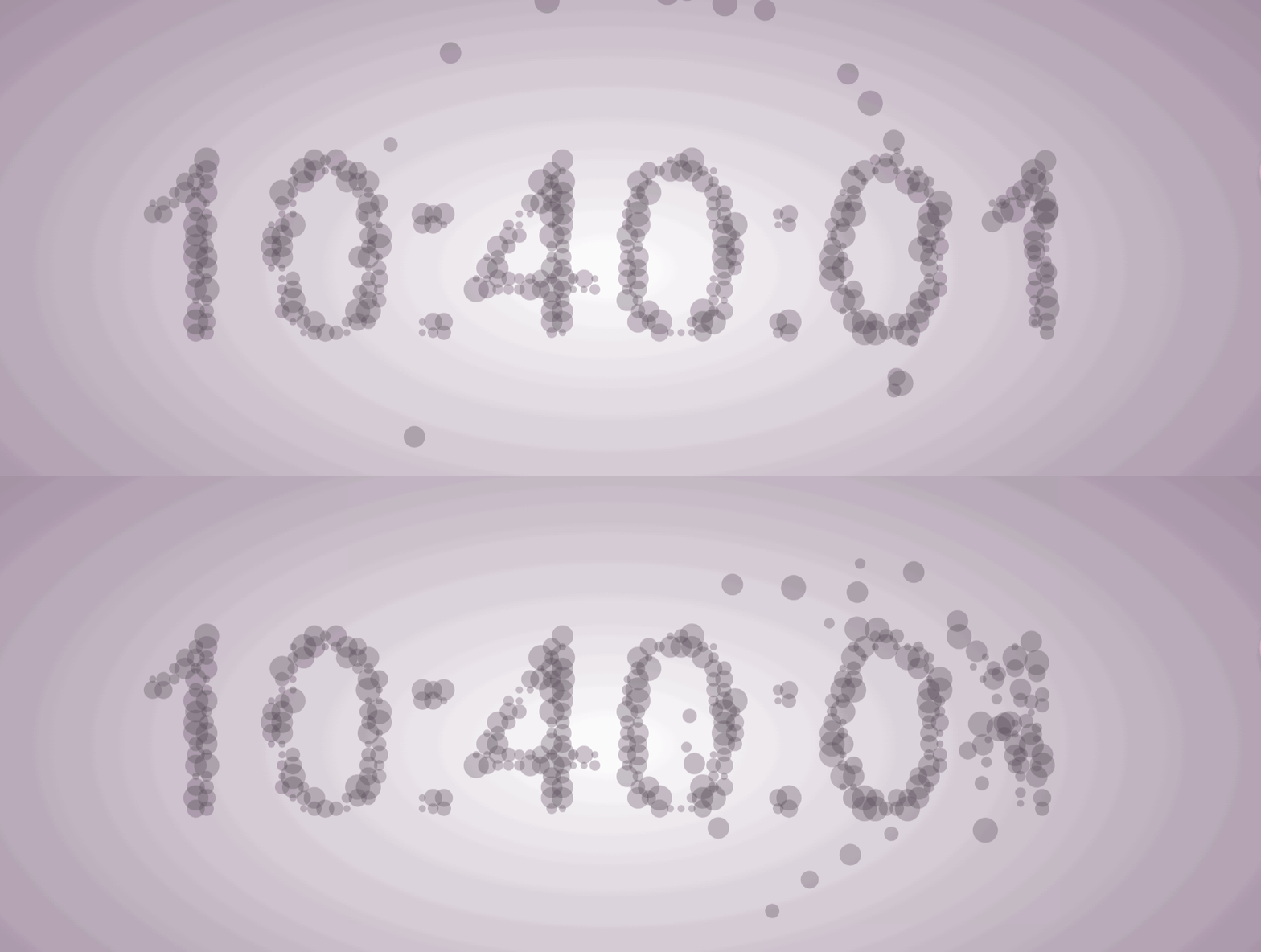
代码实现
初始化 Canvas
首先,我们需要获取 Canvas 元素并设置其上下文:
javascript
const canvas = document.getElementById('canvas');
const ctx = canvas.getContext('2d', { willReadFrequently: true });
willReadFrequently 选项用于优化性能,特别是在频繁读取像素数据时。
设置 Canvas 大小
我们需要根据设备的像素比率来设置 Canvas 的大小,以确保在高分辨率设备上显示清晰:
javascript
function initCanvasSize() {
  canvas.width = window.innerWidth * devicePixelRatio;
  canvas.height = window.innerHeight * devicePixelRatio;
}

initCanvasSize();
粒子类
每个粒子都是一个独立的对象,我们使用 Particle 类来定义它们的属性和行为:
javascript
class Particle {
  constructor() {
    this.size = getRandomInt(2, 7) * devicePixelRatio;
    const r = Math.min(canvas.width, canvas.height) * 0.4;
    const rad = Math.random() * Math.PI * 2;
    this.x = canvas.width / 2 + r * Math.cos(rad);
    this.y = canvas.height / 2 + r * Math.sin(rad);
  }

  draw() {
    ctx.beginPath();
    ctx.arc(this.x, this.y, this.size, 0, Math.PI * 2);
    ctx.fillStyle = '#5445544d';
    ctx.fill();
  }

  moveTo(tx, ty) {
    const duration = 800;
    const sx = this.x;
    const sy = this.y;
    const startTime = performance.now();

    const _move = () => {
      const progress = (performance.now() - startTime) / duration;
      if (progress >= 1) {
        this.x = tx;
        this.y = ty;
        return;
      }
      const easeProgress = easeOutCubic(progress);
      this.x = sx + (tx - sx) * easeProgress;
      this.y = sy + (ty - sy) * easeProgress;
      requestAnimationFrame(_move);
    };
    _move();
  }
}
动画循环
我们使用 requestAnimationFrame 来创建一个循环,以便不断更新和绘制粒子:
javascript
function draw() {
  clear();
  update();
  for (const p of particles) {
    p.draw();
  }
  requestAnimationFrame(draw);
}

draw();
获取时间文本
我们使用 toLocaleTimeString 方法来获取当前时间的字符串表示:
javascript
function getText() {
  return new Date().toLocaleTimeString();
}
更新粒子位置
每次时间变化时,我们需要更新粒子的位置:
javascript
function update() {
  const currentText = getText();
  if (currentText !== text) {
    const { width, height } = canvas;
    ctx.fillStyle = '#000';
    ctx.textBaseline = 'middle';
    ctx.textAlign = 'center';
    ctx.font = `${140 * devicePixelRatio}px Arial`;
    ctx.fillText(currentText, width / 2, height / 2);
    text = currentText;

    const points = getPoints();
    clear();
    for (let i = 0; i < points.length; i++) {
      const [x, y] = points[i];
      let p = particles[i];
      if (!p) {
        p = new Particle();
        particles.push(p);
      }
      p.moveTo(x, y);
    }
    if (particles.length > points.length) {
      particles.splice(points.length);
    }
  }
}
获取像素点
我们通过 getImageData 方法获取画布上的像素数据,并找出需要显示粒子的位置:
javascript
function getPoints() {
  const points = [];
  const gap = Math.floor(6 * devicePixelRatio);
  const { width, height } = canvas;
  const { data } = ctx.getImageData(0, 0, width, height);

  for (let i = 0; i < width; i += gap) {
    for (let j = 0; j < height; j += gap) {
      const index = (j * width + i) * 4;
      if (data[index] === 0 && data[index + 1] === 0 &&
        data[index + 2] === 0 && data[index + 3] === 255) {
        points.push([i, j]);
      }
    }
  }
  return points;
}
缓动函数
为了使粒子的移动更加自然,我们使用了一个缓动函数:
javascript
function easeOutCubic(x) {
  return 1 - Math.pow(1 - x, 3);
}
注意事项
- 确保在高分辨率设备上设置正确的
devicePixelRatio,以获得最佳显示效果。 - 使用
requestAnimationFrame进行动画更新,以确保动画的流畅性和性能。 - 在更新粒子位置时,注意清除画布以避免残影。
完整代码
js
const canvas = document.getElementById('canvas')
// willReadFrequently 是 WebGL 和 Canvas 2D 上下文的一个选项,用于提高性能。
// 当设置为 true 时,浏览器会优化上下文的内存管理,减少垃圾回收的频率,从而提高渲染性能。
const ctx = canvas.getContext('2d', { willReadFrequently: true })

function initCanvasSize() {
  canvas.width = window.innerWidth * devicePixelRatio
  canvas.height = window.innerHeight * devicePixelRatio
}

initCanvasSize()

/**
 * 获取[min, max]之间的随机整数
 */
function getRandomInt(min, max) {
  return Math.floor(Math.random() * (max - min + 1)) + min
}


class Particle {
  constructor() {
    this.size = getRandomInt(2, 7) * devicePixelRatio  // 更清晰的写法
    const r = Math.min(canvas.width, canvas.height) * 0.4  // 减小初始半径以获得更好的视觉效果
    const rad = Math.random() * Math.PI * 2
    this.x = canvas.width / 2 + r * Math.cos(rad)
    this.y = canvas.height / 2 + r * Math.sin(rad)
  }

  draw() {
    ctx.beginPath()
    ctx.arc(this.x, this.y, this.size, 0, Math.PI * 2)
    ctx.fillStyle = '#5445544d'
    ctx.fill()
  }


  moveTo(tx, ty) {
    const duration = 800  // 增加动画时长使移动更流畅
    const sx = this.x
    const sy = this.y
    const startTime = performance.now()  // 使用 performance.now() 获得更精确的时间

    const _move = () => {
      const progress = (performance.now() - startTime) / duration
      if (progress >= 1) {
        this.x = tx
        this.y = ty
        return
      }
      // 使用缓动函数使动画更自然
      const easeProgress = easeOutCubic(progress)
      this.x = sx + (tx - sx) * easeProgress
      this.y = sy + (ty - sy) * easeProgress
      requestAnimationFrame(_move)
    }
    _move()
  }
}

const particles = []
function clear() {
  ctx.clearRect(0, 0, canvas.width, canvas.height)
}

function draw() {
  clear()
  update()
  for (const p of particles) {
    p.draw()
  }
  requestAnimationFrame(draw)
}

let text = null
draw()

function getText() {
  return new Date().toLocaleTimeString()
}

function update() {
  //画文字
  const currentText = getText()
  if (currentText !== text) {
    const { width, height } = canvas
    ctx.fillStyle = '#000'
    ctx.textBaseline = 'middle'
    ctx.textAlign = 'center'
    ctx.font = `${140 * devicePixelRatio}px Arial`
    ctx.fillText(currentText, width / 2, height / 2)
    text = currentText
    //拿到像素信息

    const points = getPoints()
    clear()
    for (let i = 0; i < points.length; i++) {
      const [x, y] = points[i]
      let p = particles[i]
      if (!p) {
        p = new Particle()
        particles.push(p)
      }
      p.moveTo(x, y)
    }
    if (particles.length > points.length) {
      particles.splice(points.length)
    }
  }
}

function getPoints() {
  const points = []
  const gap = Math.floor(6 * devicePixelRatio)  // 减小间隔使点更密集
  const { width, height } = canvas
  const { data } = ctx.getImageData(0, 0, width, height)

  for (let i = 0; i < width; i += gap) {
    for (let j = 0; j < height; j += gap) {
      const index = (j * width + i) * 4  // 修正索引计算
      if (data[index] === 0 && data[index + 1] === 0 &&
        data[index + 2] === 0 && data[index + 3] === 255) {
        points.push([i, j])
      }
    }
  }
  return points
}

// 添加缓动函数
function easeOutCubic(x) {
  return 1 - Math.pow(1 - x, 3)
}