基本概念和原理 📚
首先我们了解一些基本概念
体素:体积像素,类似于二维平面的像素点,体素就是一种三维的像素点,体素化是将三维物体转化为体素的过程。你可以把体素理解成一块一块的积木,体素模型就是用积木拼起来的模型
现在我们有这样一个需求:我们需要通过拖拽/上传,把用户提供的模型文件能够渲染成体素模型,这该怎么做呢?
我们可以把整个需求分解成下面几个小步骤:
- 实现上传/拖拽文件功能 📤
- File --> Model 实现渲染模型功能 🎨
- 将模型体素化,渲染体素模型 🎮
- 优化... ⚡
实现上传/拖拽文件功能 📤
我们先来实现简易版的 模块引入 & 上传 & 拖拽上传文件功能
注意点:
- cdn 引入threejs,使用importmap引入 自己可以修改对应的version
  <script type="importmap">
    {
      "imports": {
        "three": "https://cdn.jsdelivr.net/npm/three@0.126.1/build/three.module.js",
        "three/addons/": "https://cdn.jsdelivr.net/npm/three@0.126.1/examples/jsm/"
      }
    }
    </script>
drag事件要阻止默认事件,否则会触发浏览器的默认行为(打开文件)
handleFile2Model之后需要清空input的value值,不然通过点击上传同名文件的时候,不会触发change事件
完整代码:
<!DOCTYPE html>
<html lang="en">

<head>
  <meta charset="UTF-8">
  <meta name="viewport" content="width=device-width, initial-scale=1.0">
  <title>Document</title>
  <style>
    .inputBox {
      margin: 0 auto;
      display: flex;
      align-items: center;
      justify-content: center;
      width: 500px;
      height: 500px;
      border: 1px solid rgb(0, 0, 0);
      border-radius: 16px;
    }
  </style>
</head>

<body>
  <div class="inputBox">
    Upload
    <input type="file" id="file" accept=".glb,.gltf,.fbx,.obj,.dae,.ply,.stl" style="display: none;">
  </div>
  <script type="importmap">
    {
      "imports": {
        "three": "https://cdn.jsdelivr.net/npm/three@0.126.1/build/three.module.js",
        "three/addons/": "https://cdn.jsdelivr.net/npm/three@0.126.1/examples/jsm/"
      }
    }
    </script>
  <script type="module">
    import * as THREE from 'three';
    import { OrbitControls} from 'three/addons/controls/OrbitControls.js';
    import { GLTFLoader} from 'three/addons/loaders/GLTFLoader.js';


    const uploadWrapper = document.querySelector('.inputBox');
    const input = document.querySelector('#file');

    uploadWrapper.addEventListener('click', () => {
      input.click();
    });

    uploadWrapper.addEventListener('dragover', (e) => {
      e.preventDefault();
    });

    uploadWrapper.addEventListener('drop', (e) => {
      e.preventDefault();
      const files = e.dataTransfer.files;
      handleFile2Model(files[0])
    });

    input.addEventListener('change', (e)=>{
      const files = e.target.files;
      handleFile2Model(files[0])
    });

    function handleFile2Model(file){
      console.log(file);
      //file 2 model
      input.value = '' // 不然再次上传同名文件不会触发change事件
    }
  </script>
</body>

</html>
示例图: 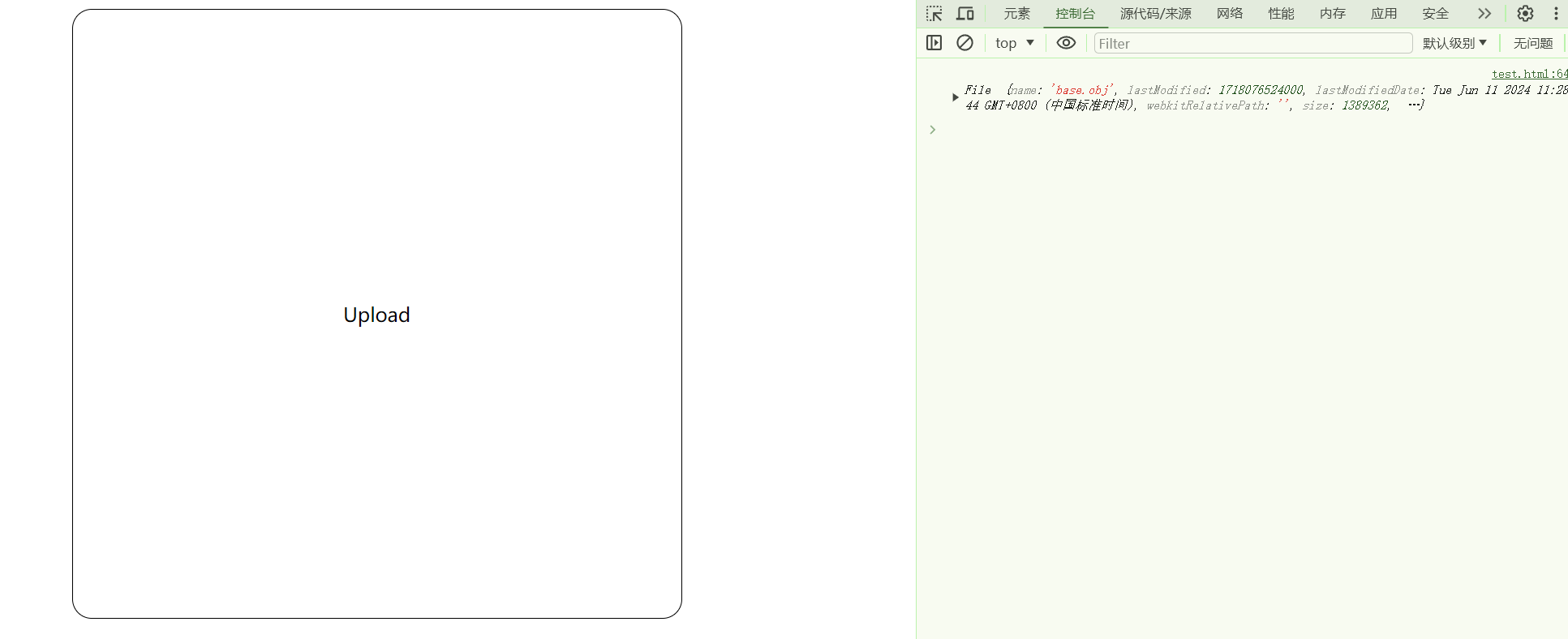
实现渲染模型功能 🎨
接下来我们就需要开始把file转换成模型渲染出来了,在这里我们需要先搭建一个简易的Three Scene,然后通过Loader加载模型,
注意点:
'gltf', 'glb', 'dae'的Loader渲染得到的在object.scene中,其他的都是object通过
traverse可以统一调整所有Mesh的位置,使所有模型能够统一到center的位置归一化处理是模型的大小在[-1,1]之间,否则会出现模型大小不一致的情况
 function handleFile2Model(file) {
     console.log(file);
     mainScene.loadModel(file)
     input.value = '' // 不然再次上传同名文件不会触发change事件
   }


   class Scene {
     constructor(renderTarget) {
       this.scene = new THREE.Scene();
       this.camera = null;
       this.renderer = null;
       this.controls = null;
       this.renderTarget = renderTarget; // 渲染目标
       this.voxelsMap = []
       this.voxels = []
       this.fileLoaderMap = {
         'glb': new GLTFLoader(),
         'fbx': new FBXLoader(),
         'gltf': new GLTFLoader(),
         'obj': new OBJLoader(),
         'dae': new ColladaLoader(),
         'stl': new STLLoader(),
         'ply': new PLYLoader(),
       }

       this.initRenderer();
       this.initCamera();
       this.initControls();
       this.initLights();
       this.initGridHelper();
       this.render();
       window.addEventListener('resize', this.onWindowResize.bind(this), false);
     }

     initRenderer() {
       this.renderer = new THREE.WebGLRenderer({ antialias: true });
       this.renderer.setSize(this.renderTarget.clientWidth, this.renderTarget.clientHeight);
       this.renderer.setPixelRatio(window.devicePixelRatio);
       this.renderer.setClearColor(0x444444, 1);
       this.renderTarget.appendChild(this.renderer.domElement);
     }

     initCamera() {
       this.camera = new THREE.PerspectiveCamera(30, this.renderTarget.clientWidth / this.renderTarget.clientHeight, 1, 3000);
       this.camera.position.set(3, 3, 3);//model加载完之后可以根据模型更新位置
     }

     initControls() {
       this.controls = new OrbitControls(this.camera, this.renderer.domElement);
       this.controls.enableDamping = true;
       this.controls.dampingFactor = 0.1;
       this.controls.minDistance = 5;//model加载完之后可以根据模型更新位置
       this.controls.maxDistance = 20;
       this.controls.addEventListener('change', () => {
         this.renderer.render(this.scene, this.camera);
       });
       this.controls.zoomSpeed = 0.8;
     }

     initLights() {
       const ambientLight = new THREE.AmbientLight(0xffffff, 0.6);
       this.scene.add(ambientLight);

       const directionalLight = new THREE.DirectionalLight(0xffffff, 0.8);
       directionalLight.position.set(100, 200, 50);
       this.scene.add(directionalLight);
     }

     initGridHelper() {
       const size = 2000;
       const divisions = 10;
       const gridHelper = new THREE.GridHelper(size, divisions, 0xCCCCCC, 0xCCCCCC);
       gridHelper.material.opacity = 0.2;
       gridHelper.material.transparent = true;
       gridHelper.name = 'gridHelper'
       this.scene.add(gridHelper);

     }

     onWindowResize() {
       this.camera.aspect = this.renderTarget.clientWidth / this.renderTarget.clientHeight;
       this.camera.updateProjectionMatrix();
       this.renderer.setSize(this.renderTarget.clientWidth, this.renderTarget.clientHeight);
       this.renderer.render(this.scene, this.camera);
     }

     render() {
       requestAnimationFrame(this.render.bind(this));
       this.controls.update();
       this.renderer.render(this.scene, this.camera);
     }

     async loadModel(file) {
       console.log('--LOAD START--');
       return new Promise((resolve, reject) => {
         const reader = new FileReader();
         reader.onload = (event) => {
           const voxelName = file.name
           const extension = voxelName.split('.').pop().toLowerCase();
           this.voxelsMap.push({ name: voxelName, voxels: [] }) //留作缓存以及记录动画voxels数组
           let loader = this.fileLoaderMap[extension]
           if (!loader) {
             console.error('Unsupported file format.');
             return;
           }
           loader.load(event.target.result, (object) => {
             this.clearModel()  //清除之前的模型
             let scaleFactor
             //这里注意不同格式拿到的模型场景所在位置不一样
             let tempScene = ['gltf', 'glb', 'dae'].includes(extension) ? object.scene : object;

             // 获取 tempScene 的中心点
             const boundingBox = new THREE.Box3().setFromObject(tempScene);
             const center = new THREE.Vector3();
             boundingBox.getCenter(center);

             // 遍历 tempScene中 的所有Mesh,将所有Mesh的位置调整以使中心点在原点
             const meshGroup = new THREE.Group();
             tempScene.traverse((object) => {
               if (object.isMesh) {
                 object.position.sub(center);
                 meshGroup.add(object.clone());  //不使用clone maybe会出现Cannot read properties of undefined (reading 'traverse')
               }
             });

             //归一化处理
             scaleFactor = this.normalizeAndVoxelize(meshGroup)
             meshGroup.scale.set(scaleFactor, scaleFactor, scaleFactor)

             // 添加到场景中
             this.showMesh = meshGroup
             this.scene.add(this.showMesh);
             this.showMesh.visible = true
             console.log('--LOAD END--');

             //体素化
             // this.generateDepthTexturePNG(this.showMesh).then(depthMaps => {
             //   this.depthMap2Pos(depthMaps, voxelName)
             // });

             resolve(voxelName)
           }, () => {

           }, (err) => {
             console.error('Failed to load object.', err);
             reject()
           });

         };
         reader.readAsDataURL(file);
       })
     }

     normalizeAndVoxelize(scene) {
       let scaleFactor = 1;
       const boundingBox = new THREE.Box3().setFromObject(scene);
       if (!boundingBox.isEmpty()) {
         const maxDimension = Math.max(
           boundingBox.max.x - boundingBox.min.x,
           boundingBox.max.y - boundingBox.min.y,
           boundingBox.max.z - boundingBox.min.z
         );

         scaleFactor = 2 / maxDimension * 0.95;
         console.log('scaleFactor', scaleFactor);
       } else {
         console.error('Bounding box is empty.');
       }
       return scaleFactor
     }

     clearModel() {
       if (this.showMesh) {
         this.showMesh?.geometry?.dispose();
         this.showMesh?.material?.dispose();
         this.scene.remove(this.showMesh);
         this.showMesh = null;
       }

       if (this.instancedMesh) {
         this.instancedMesh?.geometry?.dispose();
         this.instancedMesh?.material?.dispose();
         this.scene.remove(this.instancedMesh);
         this.instancedMesh = null;
       }
       this.voxels = [];
     }
   }

   const mainScene = new Scene(uploadWrapper);
演示图: 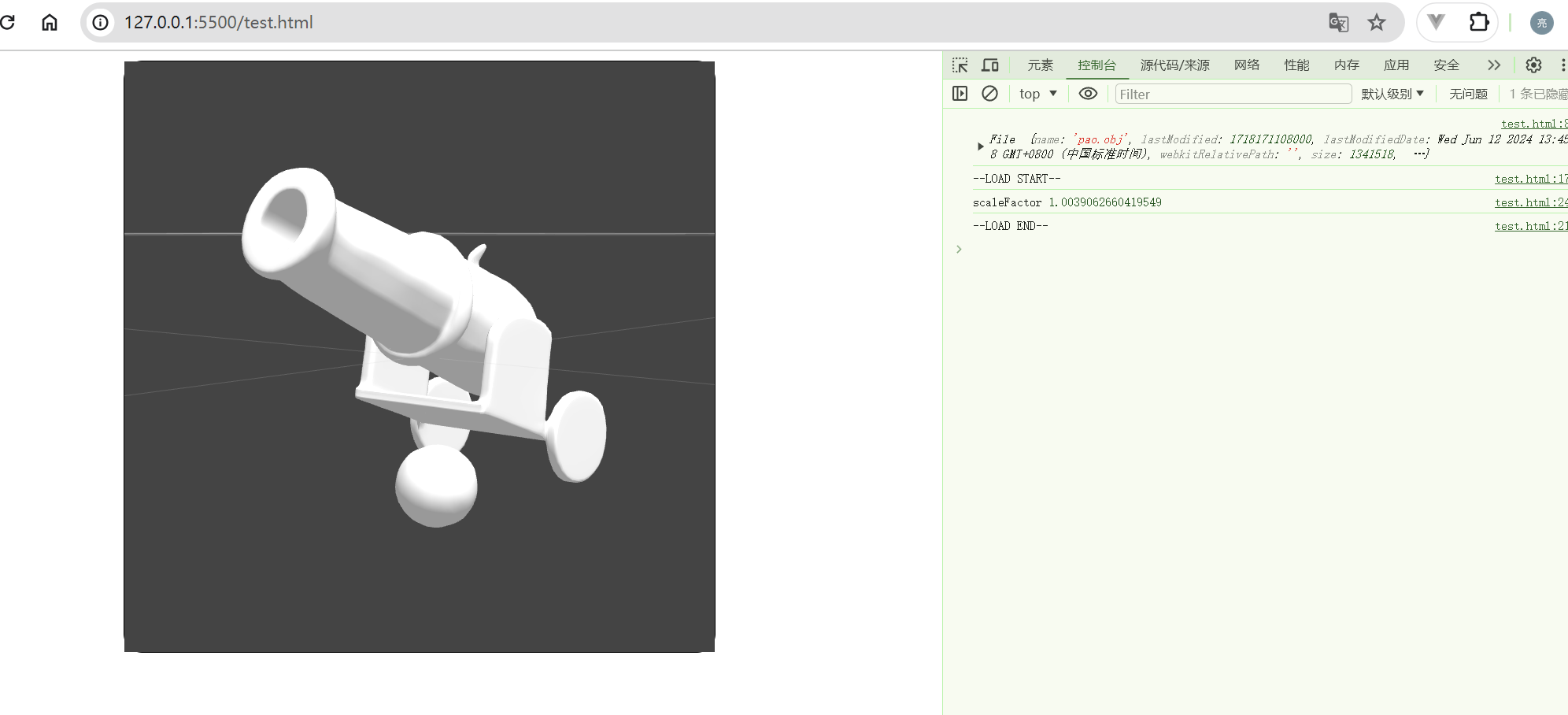
Three.js体素化原理及实现 🔍
在实现体素化的过程中,我们探索了两种方案:光线投射法和深度图法。让我们深入了解这两种方案的原理和实现。
方案一:光线投射法 🎯
原理
光线投射法的核心思想是:
- 获取模型的包围盒(Bounding Box)
- 将包围盒划分为网格
- 对每个网格点发射射线
- 通过射线与模型的相交次数判断点是否在模型内部
实现细节
isInsideMesh(pos, target, mesh) {
  this.rayCaster.set(pos, target);
  const intersects = this.rayCaster.intersectObject(mesh);
  return intersects.length % 2 === 1; // 奇数次相交表示在内部
}
优缺点
✅ 优点:
- 实现直观易懂
- 适用于各种模型
❌ 缺点:
- 计算开销大
- 对于薄壁模型精度不高
- 需要多方向射线提高准确度
方案二:深度图法 🖼️
原理
深度图法的思路更加巧妙:
- 从六个正交方向获取模型的深度图
- 将深度信息转换为体素空间
- 通过深度值决定体素的存在与否
核心步骤详解
1️⃣ 生成深度图
// 使用正交相机从六个方向拍摄
const directions = [
  { rotation: new THREE.Vector3(0, 0, 0), name: 'front' },
  { rotation: new THREE.Vector3(0, Math.PI, 0), name: 'back' },
  // ... 其他方向
];

// 使用自定义着色器渲染深度
const depthMaterial = new THREE.ShaderMaterial({
  vertexShader: `
    varying vec4 vWorldPosition;
    void main() {
      vWorldPosition = modelMatrix * vec4(position, 1.0);
      gl_Position = projectionMatrix * modelViewMatrix * vec4(position, 1.0);
    }
  `,
  fragmentShader: `
    varying vec4 vWorldPosition;
    void main() {
      float depth = vWorldPosition.z * 0.5 + 0.5;
      gl_FragColor = vec4(vec3(depth), 1.0);
    }
  `
});
2️⃣ 深度图转换为体素空间
// 将256x256的深度图降采样到16x16
const flippedPixels = new Uint8Array(16 * 16).fill(0);
for (let y = 0; y < 256; y++) {
  for (let x = 0; x < 256; x++) {
    const srcIndex = (y * 256 + x) * 4;
    const dstIndex = ((15 - Math.floor(y / 16)) * 16 + Math.floor(x / 16));
    flippedPixels[dstIndex] = Math.max(pixels[srcIndex], flippedPixels[dstIndex]);
  }
}
3️⃣ 构建体素模型
// 遍历体素空间创建实例化网格
for (let i = 0; i < 16; i++) {
  for (let j = 0; j < 16; j++) {
    for (let k = 0; k < 16; k++) {
      if (voxelsMappingPosArr[pos] === 1) {
        // 创建体素位置
        pos.set((i + 0.5) * voxelSize - 1,
                (j + 0.5) * voxelSize - 1,
                (k + 0.5) * voxelSize - 1);
        voxels.push({ position: pos.clone() });
      }
    }
  }
}
优化细节 ⚡
- 使用WebGL RenderTarget高效获取深度图
- 采用InstancedMesh批量渲染体素
- 实现体素动画过渡效果
- 支持模型对称处理
- 设计缓存机制避免重复计算
性能对比 📊
| 方案 | 处理时间 | 内存占用 | 精确度 |
|---|---|---|---|
| 光线投射法 | 5032ms | 中等 | 较高 |
| 深度图法 | 36ms | 低 | 中等 |
优化效果: 时间从5032ms降至36ms,性能提升99%+ 🚀
总结与思考 🤔
深度图法相比光线投射法有显著的性能优势,主要归功于:
- 降维处理:将3D问题转化为2D处理
- 批量计算:避免逐点射线检测
- GPU加速:利用WebGL渲染获取深度图
但深度图法也存在一些局限:
- 可能丢失细节特别是凹陷区域
- 分辨率受限于深度图大小
- 对于复杂形状可能需要更多视角
这次优化经历告诉我们:
- 算法的选择往往需要在精度和效率之间权衡
- 将3D问题降维处理可以带来显著的性能提升
- GPU渲染能力是一个强大的计算工具
最后,感谢公司大佬的指点,让我重新认识到算法优化的重要性。正如这次优化经历所示,有时候需要换个思路,就能达到质的飞跃! 🌟