📱 移动端原生轮播图
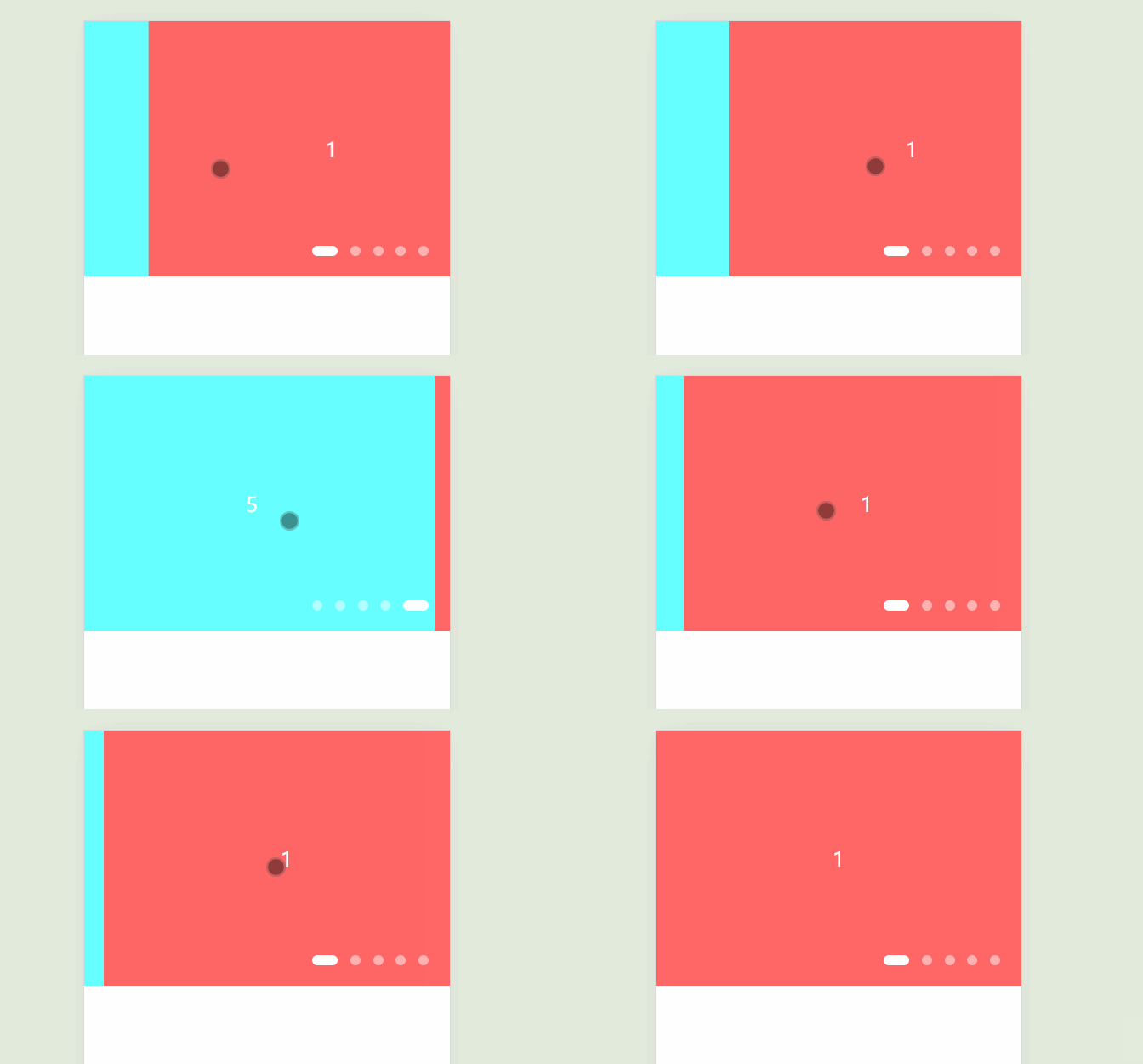
在移动端开发中,轮播图是一个非常常见的交互组件。今天我们将学习如何使用原生 HTML、CSS 和 JavaScript 实现一个支持触摸滑动的轮播图。
🎯 实现效果
- ✨ 支持触摸滑动切换
- 🔄 无缝循环轮播
- 💫 平滑过渡动画
- 🔍 底部指示器联动
🔨 核心实现思路
无缝轮播原理:
- 在首尾各添加一张过渡图片
- 实际显示顺序:5,1,2,3,4,5,1
- 当滑到最后一张(1)时,瞬间切换到第二张(1)
- 当滑到第一张(5)时,瞬间切换到倒数第二张(5)
触摸事件处理:
- touchstart:记录起始触摸位置
- touchmove:计算滑动距离并实时更新位置
- touchend:根据滑动距离决定是否切换图片
📝 完整代码实现
html
<!DOCTYPE html>
<html lang="zh-CN">
<head>
    <meta charset="UTF-8">
    <meta name="viewport" content="width=device-width, initial-scale=1.0">
    <title>移动端轮播图</title>
    <style>
        /* 基础样式重置 */
        * {
            margin: 0;
            padding: 0;
            box-sizing: border-box;
        }

        /* 轮播图容器 */
        .focus {
            height: 300px;
            position: relative;
            overflow: hidden;
        }

        /* 轮播图列表 */
        .focus ul {
            width: 700%;
            height: 100%;
            margin-left: -100%;
        }

        /* 轮播图列表项 */
        .focus ul li {
            float: left;
            width: 14.2857%;
            height: 100%;
            list-style: none;
        }

        /* 示例图片样式 */
        .focus ul li span {
            display: flex;
            justify-content: center;
            align-items: center;
            width: 100%;
            height: 100%;
            font-size: 24px;
            color: #fff;
        }

        /* 指示器样式 */
        .indicator {
            position: absolute;
            bottom: 20px;
            right: 20px;
        }

        .indicator li {
            display: inline-block;
            width: 12px;
            height: 12px;
            margin: 0 5px;
            border-radius: 50%;
            background: rgba(255,255,255,0.5);
            cursor: pointer;
        }

        .indicator li.active {
            width: 30px;
            border-radius: 6px;
            background: #fff;
        }

        /* 演示用的背景色 */
        .bg1 { background: #f66; }
        .bg2 { background: #66f; }
        .bg3 { background: #6f6; }
        .bg4 { background: #ff6; }
        .bg5 { background: #6ff; }
    </style>
</head>
<body>
    <div class="focus">
        <ul>
            <li><span class="bg5">5</span></li>
            <li><span class="bg1">1</span></li>
            <li><span class="bg2">2</span></li>
            <li><span class="bg3">3</span></li>
            <li><span class="bg4">4</span></li>
            <li><span class="bg5">5</span></li>
            <li><span class="bg1">1</span></li>
        </ul>
        <ol class="indicator">
            <li class="active"></li>
            <li></li>
            <li></li>
            <li></li>
            <li></li>
        </ol>
    </div>

    <script>
        document.addEventListener('DOMContentLoaded', () => {
            const focus = document.querySelector('.focus');
            const ul = focus.querySelector('ul');
            const indicators = focus.querySelectorAll('.indicator li');
            const width = focus.offsetWidth;

            let index = 0;
            let startX = 0;
            let moveX = 0;
            let isTouching = false;

            // 触摸开始事件
            ul.addEventListener('touchstart', e => {
                startX = e.touches[0].clientX;
                isTouching = true;
            });

            // 触摸移动事件
            ul.addEventListener('touchmove', e => {
                if (!isTouching) return;
                moveX = e.touches[0].clientX - startX;
                ul.style.transition = 'none';
                ul.style.transform = `translateX(${-width * index + moveX}px)`;
            });

            // 触摸结束事件
            ul.addEventListener('touchend', () => {
                if (!isTouching) return;

                if (Math.abs(moveX) > 50) {
                    index += moveX > 0 ? -1 : 1;
                }

                ul.style.transition = 'transform 0.3s';
                ul.style.transform = `translateX(${-width * index}px)`;

                updateIndicator();

                isTouching = false;
                moveX = 0;
            });

            // 监听过渡结束事件
            ul.addEventListener('transitionend', () => {
                if (index >= 5) {
                    index = 0;
                    ul.style.transition = 'none';
                    ul.style.transform = `translateX(${-width * index}px)`;
                } else if (index < 0) {
                    index = 4;
                    ul.style.transition = 'none';
                    ul.style.transform = `translateX(${-width * index}px)`;
                }
                updateIndicator();
            });

            // 更新指示器状态
            function updateIndicator() {
                indicators.forEach(indicator => indicator.classList.remove('active'));
                indicators[index % 5].classList.add('active');
            }
        });
    </script>
</body>
</html>
🔍 关键点解析
CSS 布局
- 使用
overflow: hidden隐藏多余内容 - 设置
ul宽度为 700%(7张图片) - 使用
margin-left: -100%默认显示第二张图片
- 使用
JavaScript 实现
- 使用
transform: translateX()实现平滑滑动 - 通过
transition控制动画效果 - 监听
transitionend事件处理边界情况
- 使用
📌 注意事项
- 移动端必须添加 viewport meta 标签
- 触摸事件的性能优化:避免频繁的 DOM 操作
- 使用
transform代替left属性实现更好的性能 - 合理设置滑动阈值(示例中为 50px)
🚀 优化建议
- 自动轮播:
javascript
// 添加自动轮播功能
let timer = setInterval(() => {
    index++;
    ul.style.transition = 'transform 0.3s';
    ul.style.transform = `translateX(${-width * index}px)`;
    updateIndicator();
}, 3000);

// 触摸时暂停自动轮播
ul.addEventListener('touchstart', () => clearInterval(timer));性能优化:
- 使用
transform: translate3d()开启硬件加速 - 添加
will-change: transform提示浏览器优化
- 使用
可访问性优化:
- 添加适当的 ARIA 属性
- 支持键盘导航
🎉 总结
通过这个案例,我们学习了:
- 移动端触摸事件的处理
- 无缝轮播的实现原理
- CSS 动画过渡效果
- JavaScript 事件监听和状态管理